Video tutorial
Please note: This guide explains how to configure your Outlook application to access your email account.
This tutorial was created using Microsoft Outlook for Office 365 on a PC running Windows 10. If you are using a different version or operating system, these instructions may differ.
Setting up Webmail in Outlook
1. Launch your Outlook application, then click on File in the main toolbar, as shown here:

2. Click the + Add Account button, as shown here:

3. In the new window that appears, enter your full email address, then click the blue Connect button, as shown here:

4. In the next window, enter your password, then click the blue Connect button, as shown here:

5. It’s expected you will see a Something went wrong message similar to this one:

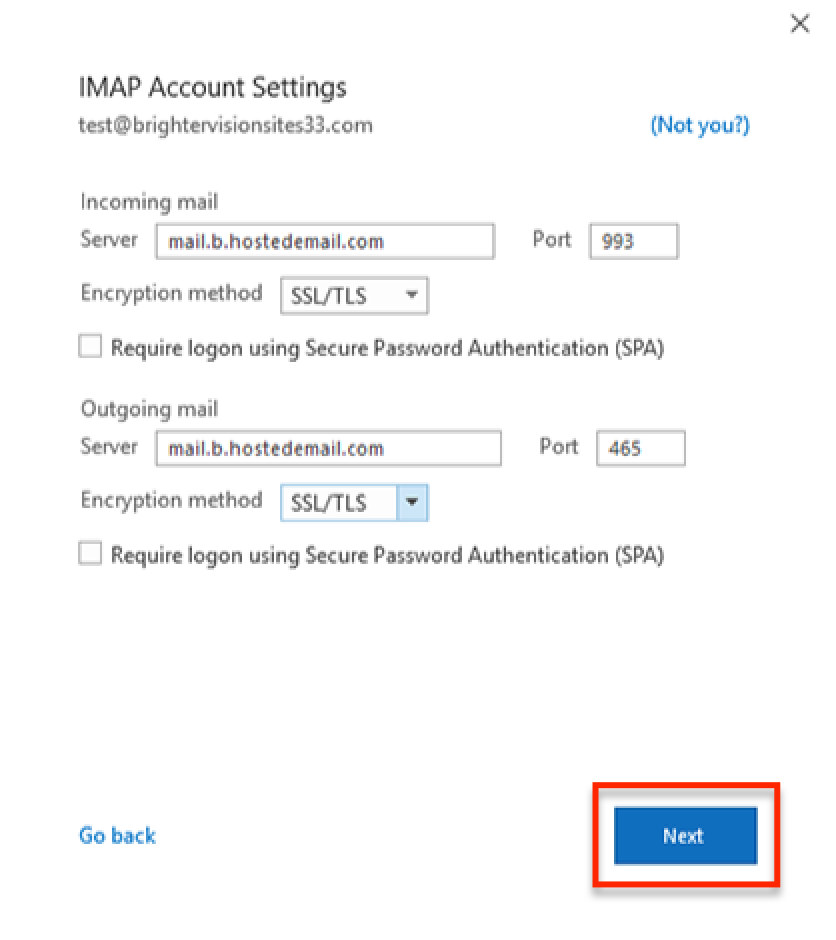
6. Click the Change Account Settings button and enter in the following additional information:
Incoming mail
- Server: mail.hostedemail.com (( Change this to domain "hostedemail.com" to your domain))
- Port: 993
- Encryption method: SSL/TLS
Outgoing mail
- Server: mail.hostedemail.com (( Change this domain "hostedemail.com" to your domain))
- Port: 465
- Encryption method: SSL/TLS
Once you’ve entered the above information click the blue Next button, as shown here:
7. You will be asked for your password one more time, as shown here:

8. Finally, on the confirmation screen, like the one below, uncheck the box to Set up Outlook Mobile on my phone, too – unless you want to do this – and then click the blue Done button.

This should complete your account setup!